> ## Documentation Index
> Fetch the complete documentation index at: https://docs.refacto.ai/llms.txt
> Use this file to discover all available pages before exploring further.
# GitLab
> Connect Refacto to your GitLab repositories.
### Prerequisites
If you are using a **Self-Managed GitLab** instance (hosted on-premise or in a private cloud), you must ensure Refacto can communicate with your server.
**Allowlist Refacto IP**
Please configure your firewall or security group inbound rules to whitelist the following IP address to ensure uninterrupted connectivity:
**`3.131.112.244`**
Follow these steps to connect Refacto to your GitLab workspace.
* Navigate to the **Integrations** page in your Refacto dashboard.
* Click **Connect** on **GitLab**.
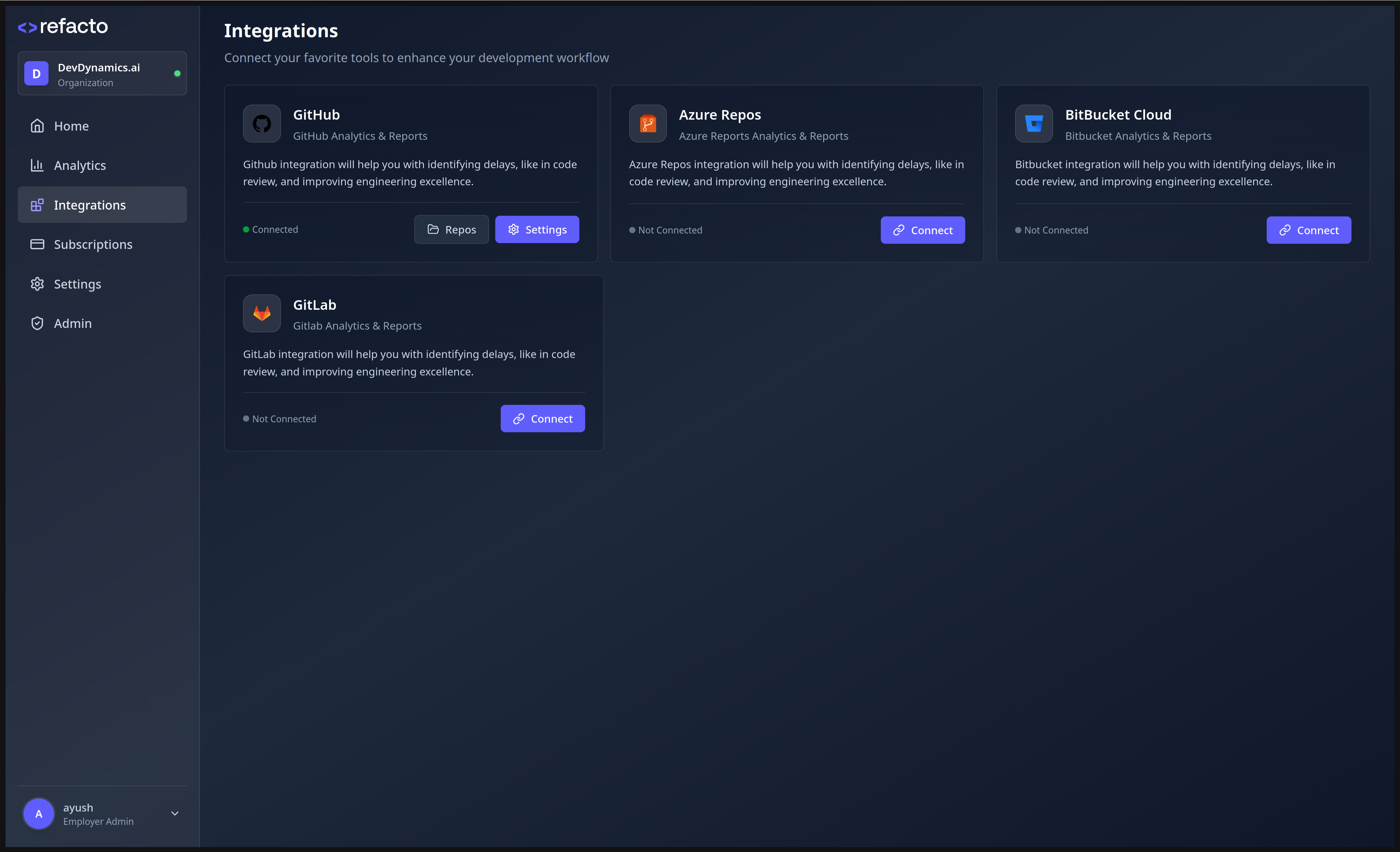 You need to create a **GitLab Personal Access Token** with appropriate permissions.
⚠️ You must have **Administrator / Owner access** to the GitLab group or instance to generate API tokens and create webhooks.
1. Log in to **GitLab** with an account having Owner/Admin permissions.
2. Navigate to **User settings → Personal access tokens → Add new token**, or open directly: `https://gitlab.com/-/user_settings/personal_access_tokens`
You need to create a **GitLab Personal Access Token** with appropriate permissions.
⚠️ You must have **Administrator / Owner access** to the GitLab group or instance to generate API tokens and create webhooks.
1. Log in to **GitLab** with an account having Owner/Admin permissions.
2. Navigate to **User settings → Personal access tokens → Add new token**, or open directly: `https://gitlab.com/-/user_settings/personal_access_tokens`
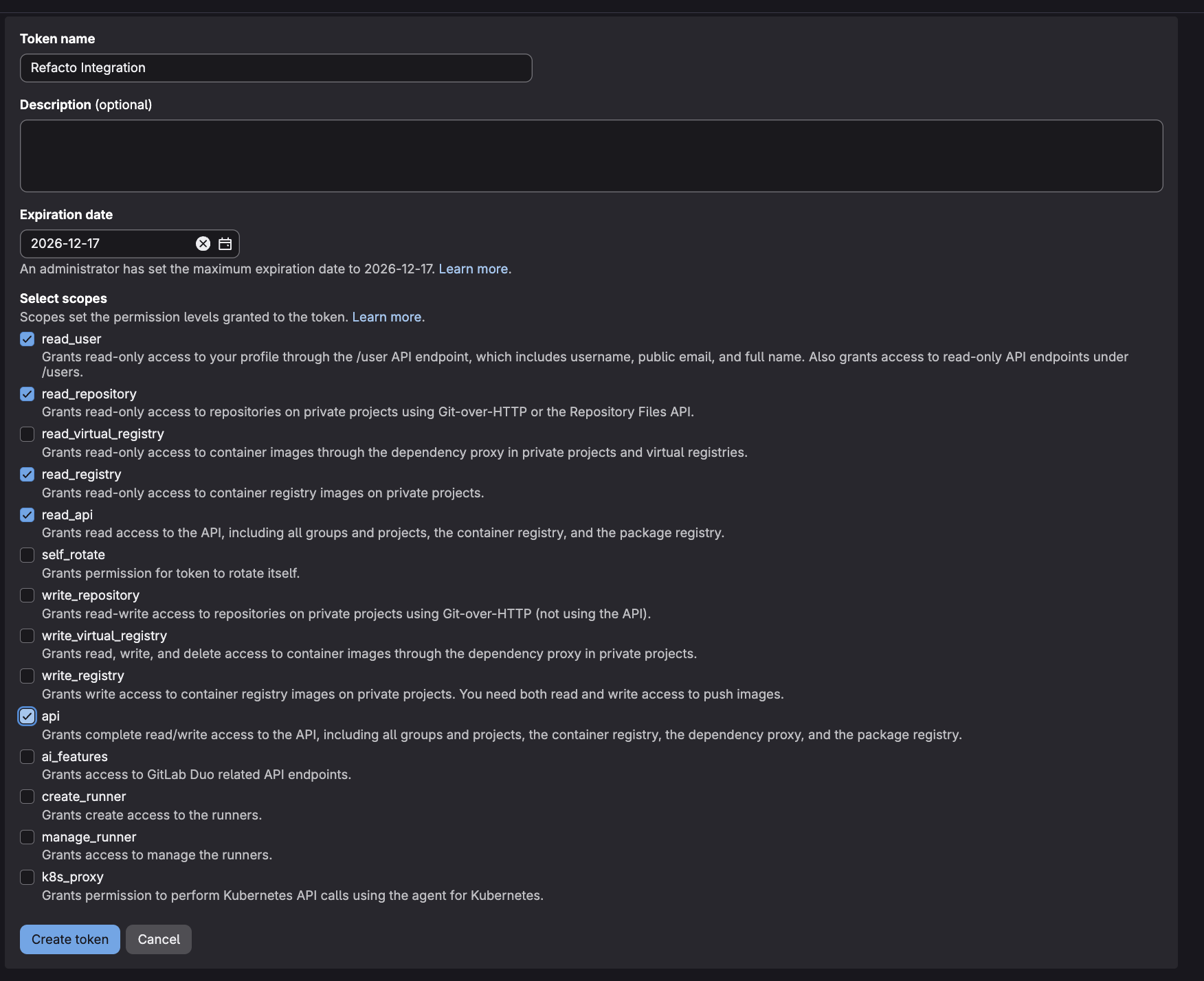
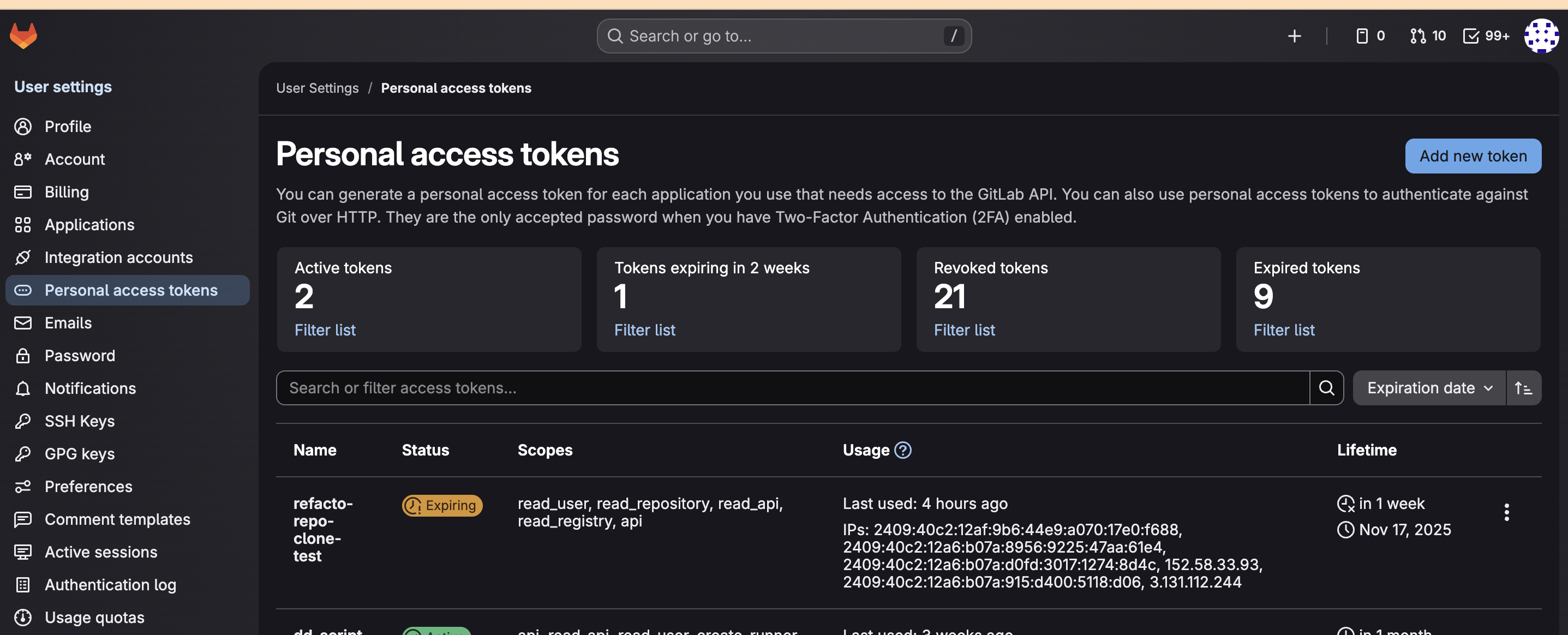 3. Under **Create a personal access token**, fill in the following:
* **Token name**: `Refacto Integration`
* **Expiration date**: Recommended **180–360 days**
4. Under **Select scopes**, enable the following required scopes:
| Scope | Mandatory | Purpose | If Missing |
| :---------------- | :-------- | :----------------------------------------------------------------------------------------------------------------------- | :------------------------------------------------------- |
| `read_user` | ✅ Yes | Provides access to user identity and account details. Used to correctly attribute commits, merge requests, and comments. | User attribution and reviewer mapping will fail. |
| `read_repository` | ✅ Yes | Allows read access to repositories, branches, and code required for merge request analysis. | Refacto cannot fetch code or diffs for review. |
| `read_api` | ✅ Yes | Grants access to GitLab APIs to fetch projects, groups, merge requests, and pipeline metadata. | Repository and MR metadata cannot be retrieved. |
| `read_registry` | ✅ Yes | Enables access to container registry metadata when repositories reference images. | Image-related context will be unavailable. |
| `api` | ✅ Yes | Required to create and manage webhooks and to post automated review comments on merge requests. | Webhooks won’t trigger and Refacto cannot post feedback. |
5. Review the selected scopes and click **Create token**.
3. Under **Create a personal access token**, fill in the following:
* **Token name**: `Refacto Integration`
* **Expiration date**: Recommended **180–360 days**
4. Under **Select scopes**, enable the following required scopes:
| Scope | Mandatory | Purpose | If Missing |
| :---------------- | :-------- | :----------------------------------------------------------------------------------------------------------------------- | :------------------------------------------------------- |
| `read_user` | ✅ Yes | Provides access to user identity and account details. Used to correctly attribute commits, merge requests, and comments. | User attribution and reviewer mapping will fail. |
| `read_repository` | ✅ Yes | Allows read access to repositories, branches, and code required for merge request analysis. | Refacto cannot fetch code or diffs for review. |
| `read_api` | ✅ Yes | Grants access to GitLab APIs to fetch projects, groups, merge requests, and pipeline metadata. | Repository and MR metadata cannot be retrieved. |
| `read_registry` | ✅ Yes | Enables access to container registry metadata when repositories reference images. | Image-related context will be unavailable. |
| `api` | ✅ Yes | Required to create and manage webhooks and to post automated review comments on merge requests. | Webhooks won’t trigger and Refacto cannot post feedback. |
5. Review the selected scopes and click **Create token**.
 **Important:** Copy the generated token immediately. It will be shown only once.
On the GitLab setup page in Refacto, enter the following details:
* **GitLab Instance URL** – (e.g., `https://gitlab.com` or your self-managed GitLab URL).
* **Personal Access Token** – The token you generated in the previous step.
**Important:** Copy the generated token immediately. It will be shown only once.
On the GitLab setup page in Refacto, enter the following details:
* **GitLab Instance URL** – (e.g., `https://gitlab.com` or your self-managed GitLab URL).
* **Personal Access Token** – The token you generated in the previous step.
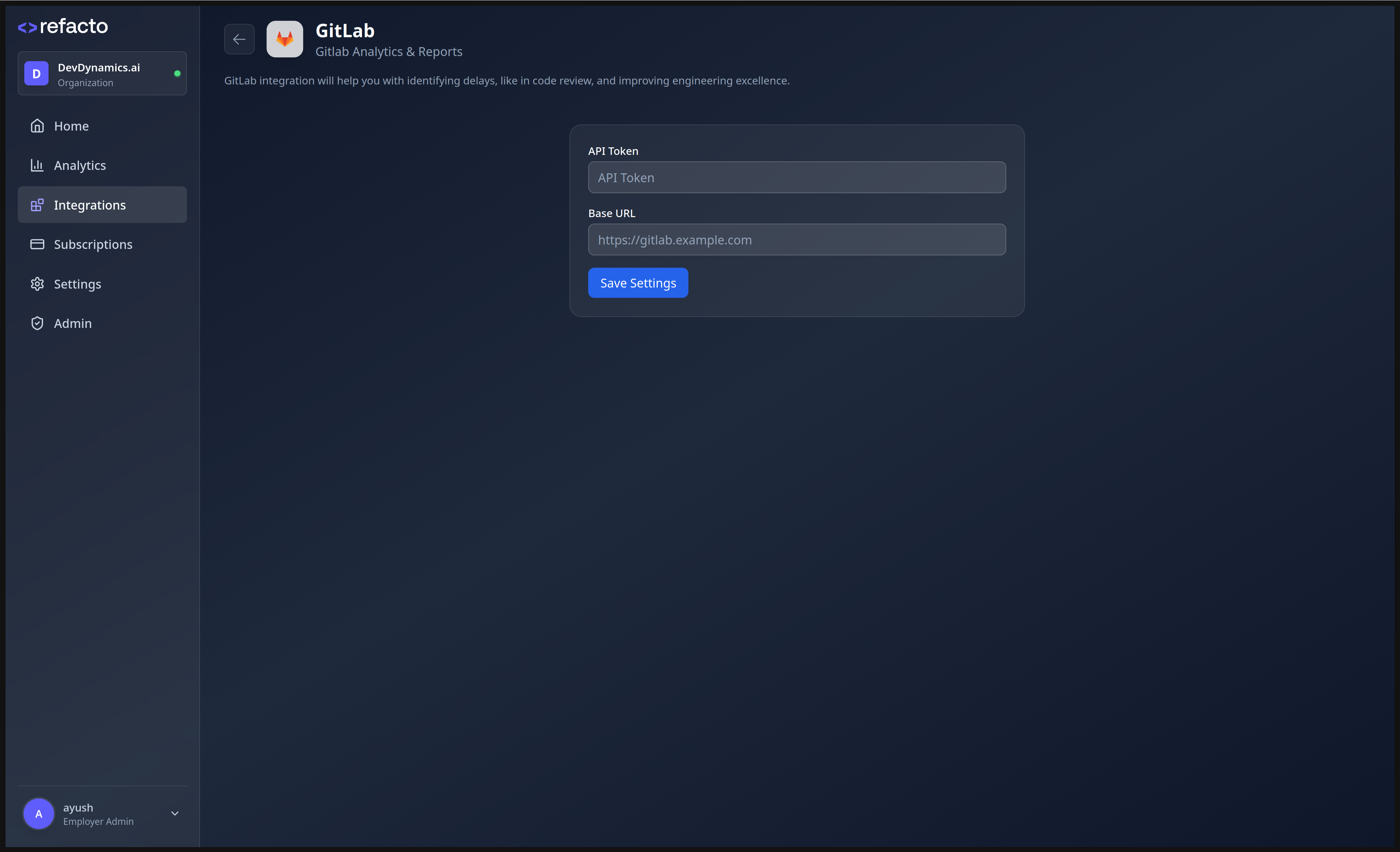 Click **Save Settings** to complete the setup.
Your GitLab integration is now active. Refacto will automatically:
* Discover repositories
* Create required webhooks
* Start analyzing merge requests
Click **Save Settings** to complete the setup.
Your GitLab integration is now active. Refacto will automatically:
* Discover repositories
* Create required webhooks
* Start analyzing merge requests